

Use this image pattern generator to turn drawings, logos, photos or emoji into a repeating background. Upload your own images, add emoji or try the sample illustrations, adjust the repeat layout, and download a seamless tile or a larger PNG. You can keep the background transparent and save an editable project to continue later.
Make a repeating image pattern
Upload a logo, drawing or photo, add emoji, or start with a sample. Your images stay in your browser.
Sample buttons replace the current images and layout. Undo restores your previous design.
Drop PNG, JPG or WebP files here. Up to 6 images, 10 MB and 24 megapixels each. Large images are resized to 2048 px.
Paste emoji from your keyboard, including flags, skin tones and family sequences. Up to six motifs total, mixing emoji and images.
Browse and search emoji
Emoji graphics: Twemoji, CC BY 4.0. Credit is included in exported PNG/SVG files and projects.
Pattern preview
Loading the sample pattern...
Motif size is relative to each grid cell. More rows or columns give smaller, denser repeats. Even row and column counts keep staggered and mirrored tiles aligned.
Download your pattern
Export a larger background or website CSS
Larger backgrounds repeat the tile without stretching it. Maximum 6000 px per side and 20 megapixels total. CSS uses the 1x tile PNG filename.
SVG keeps sample illustrations as vectors and embeds uploaded pictures and emoji as raster images. Saving a project lets you change the design later.
Open exported image


How to turn an image into a pattern
- Add your artwork. Choose PNG, JPG or WebP files, drop them into the upload area, or add emoji from the picker or paste field. Click Remove all first if you want to replace the sample images completely. You can combine up to six motifs, mixing images and emoji.
- Choose a repeat. Start with a straight grid, then try brick, half-drop, mirror or scattered placement. The repeated preview shows how neighboring tiles fit together.
- Adjust the spacing and appearance. Change the tile dimensions, row and column counts, motif size, rotation and variation. Select an individual image to resize, rotate or flip it independently.
- Check and export. View a single tile, inspect the repeated pattern at different zoom levels, then download a tile PNG, tile SVG or larger background. Save a project if you want to revise the design later.
For a quick example, try a 640 x 640 pixel tile with four rows, four columns and a motif size around 70%. Increasing the row and column counts makes the artwork smaller and the pattern denser. Reducing motif size creates more space between images.
Which repeat layout should you use?
- Straight grid: places images in aligned rows and columns. It works well for logos, simple icons, orderly backgrounds and square photos.
- Brick: shifts alternate rows horizontally by half a cell. It breaks up the vertical lines of a straight repeat.
- Half-drop: shifts alternate columns vertically by half a cell. Try it for flowers, leaves and other motifs that look too rigid in a grid.
- Mirror: flips images in alternate rows and columns. Directional shapes become symmetrical arrangements. Text and logos will also be reversed, so inspect them carefully.
- Scattered: moves each image within its cell and chooses from your image set using a random seed. Increase scatter, random rotation and size variation for a looser arrangement.
The row and column options use even numbers so staggered and mirrored layouts return to the same alignment at the tile boundary. Random settings are repeatable: the same images, settings and seed produce the same design. Shuffle variation changes the seed without changing your other settings.
Make an emoji pattern
Open Browse and search emoji to choose from 3944 emoji in the bundled collection. Search by name, such as cat, flower, pizza or flag, or filter by category. Click an emoji to add it directly to the pattern. Use Previous and Next to browse more results.
You can also paste one or several emoji into Add any emoji and click Add emoji. Flags, skin tones and joined sequences such as families count as individual motifs. The six-motif limit includes both uploaded images and emoji, so remove a sample first if you need more room.
Select an emoji in Your motifs to resize, rotate or flip it. Mix several emoji, combine them with your own artwork, or repeat just one. They use the same layout, variation and transparency controls as other images.
Emoji are converted to embedded images when added, preserving their appearance in exports and saved projects. The bundled collection uses Twemoji graphics under CC BY 4.0; attribution is included in PNG metadata, SVG metadata and project files. Keep or provide that credit when sharing designs containing these graphics. Emoji outside the collection use your device’s font, whose support and appearance can vary.
What makes the pattern seamless?
A repeating tile must continue correctly on all four sides. When a motif crosses an edge, this tool draws its continuation on the opposite edge. Repeating the exported tile therefore preserves the same arrangement across tile boundaries, including rotated and oversized motifs.
This does not erase a rectangular background inside an uploaded photo. A JPG of a flower on a white backdrop will still show that white rectangle. For isolated illustrations or logos, use a transparent PNG. The Trim transparent margins option removes empty padding around the artwork on upload; it does not remove white, colored or photographic backgrounds.
Tile PNG, SVG or a larger background?
Download tile PNG saves one complete repeat. Use it for a repeating website background or import it into a design application as a pattern swatch. At 1x, a 640 x 640 tile exports at 640 x 640 pixels; at 2x, it exports at 1280 x 1280. A transparent background stays transparent in the PNG.
Download tile SVG saves a self-contained image. The built-in sample illustrations remain vector shapes. Uploaded pictures and emoji are embedded as raster images, so placing them in an SVG does not turn them into vectors or restore missing detail.
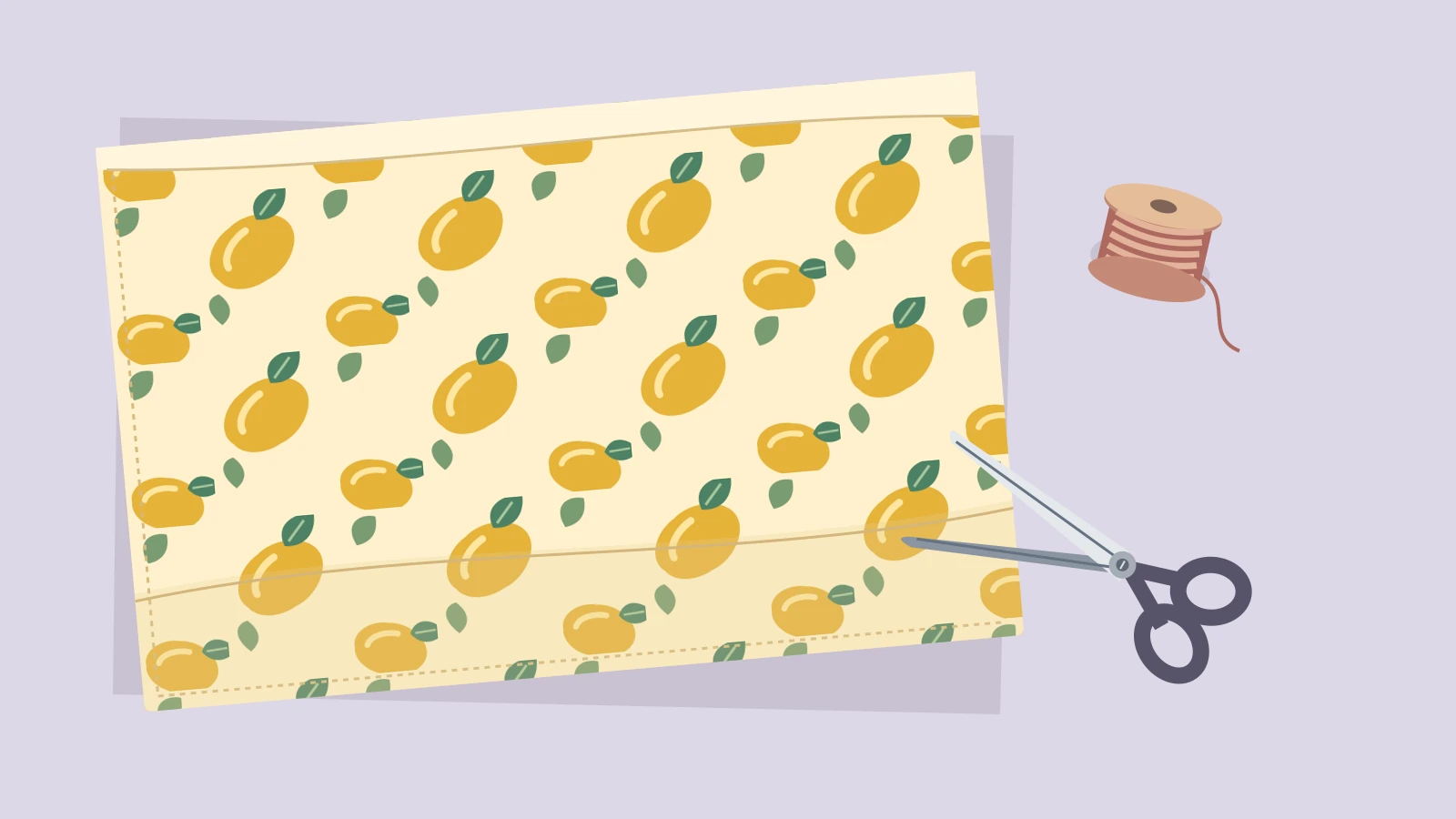
Download background PNG fills your chosen output dimensions by repeating the tile at its original pixel size. For example, a 1920 x 1080 background uses repeated portions of the tile rather than stretching one tile to fit. The outer edges of this larger image may end partway through a repeat. Use the tile export when the file itself must repeat seamlessly.
The larger export accepts 64 to 6000 pixels per side, with a maximum of 20 million pixels in total. Tile dimensions range from 128 to 2048 pixels per side, and tile PNG output supports 1x or 2x resolution. Larger files need more browser memory.
Use the pattern on a website or in print
Open the export options and download the CSS file for a website background. It references calculife-pattern-tile.png and uses the tile’s dimensions as the background size. Keep the files together, or update the image path in the CSS. The larger background PNG is useful when an application accepts one fixed-size image instead of a repeating tile.
For printing, decide how large each repeat should appear. A 1200 pixel tile printed six inches wide provides 200 pixels per inch because 1200 / 6 = 200. Set the required physical size and resolution in your print software or follow your printer’s specifications. Increasing export resolution cannot add detail that was absent from the uploaded image.
Images, privacy and editable projects
The editor processes your images in your browser without uploading them to this tool’s server. The emoji catalog and graphics load from CalcuLife; no external emoji service receives your input. Image uploads accept PNG, JPG and WebP files up to 10 MB and 24 megapixels each. Imported pictures are normalized to PNG and resized, when necessary, so their longest side is no more than 2048 pixels. SVG and animated uploads are not supported.
Save editable project downloads a JSON file containing the images, emoji artwork and settings. Use Load project to reopen it. Keep the file private if it contains private artwork. Reloading or closing the page clears the current session unless you have saved a project. Undo and redo work within the open session.
Common questions
Can I make a pattern from several images?
Yes. Combine up to six image or emoji motifs. Ordered layouts cycle through your motif list; scattered placement selects motifs using the seed. Select a motif card to change its size, rotation or horizontal flip.
Can it turn any photograph into an invisible texture?
It can repeat a photograph as a motif and wrap placements at the tile edges. It does not blend mismatched photo edges, remove backgrounds or synthesize a continuous stone, wood or fabric texture.
Why does my pattern look blurry?
The source image may be small, or the preview may be zoomed out. Inspect the exported file at its native size. Use a sharper source image, reduce motif size or choose a 2x tile export. Sample vector illustrations can scale more cleanly than low-resolution uploads.
For related artwork, try the signature generator. For technical background, MDN explains repeating images with Canvas patterns and exporting a canvas as an image file.






Leave A Comment