

Calculate the pixel density (PPI, pixel per inch), dot pitch, and precise physical dimensions of any display. This PPI Calculator helps designers, developers, and hardware enthusiasts determine how sharp a screen is and at what distance individual pixels become invisible to the human eye (Retina distance).
PPI Calculator (Pixel Density)


How To Use This Tool
You can calculate pixel density in two ways:
- Manual Input: Enter the Resolution Width and Height (in pixels) and the Diagonal Size (in inches). This is ideal for specific monitor models.
- Quick Presets: Select a device from the dropdown menu to instantly populate the fields with standard specifications for popular monitors, laptops, and tablets.
Click Calculate to generate the full density report and visualization.
Understanding the Results
This tool goes beyond simple division. It analyzes the relationship between resolution and physical size to provide actionable data.
1. The Visualizer
The visual tool generates two graphics:
- Physical Scale: A rectangle drawn to the exact aspect ratio of the physical screen dimensions, helping you visualize the shape of the display.
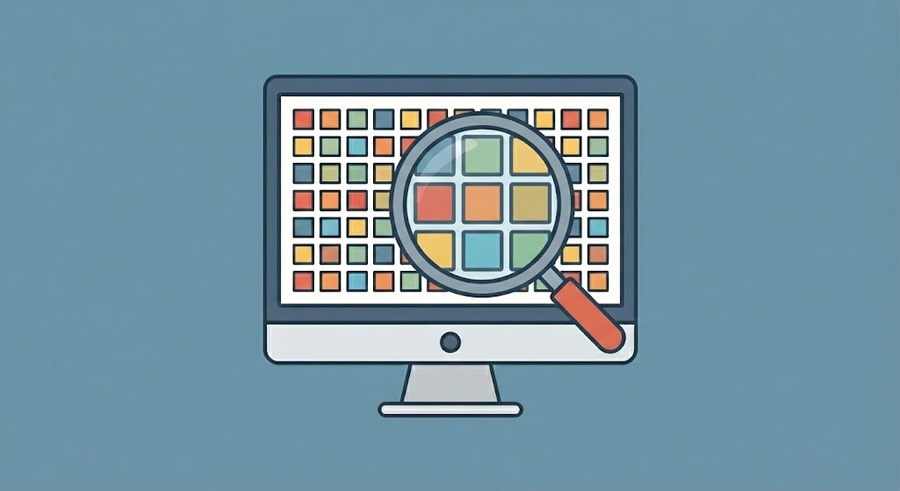
- Pixel Density Scale (Magnifying Glass): A simulation of what the pixels look like under magnification. A “Low Density” screen will show a visible grid, while an “Ultra High Density” screen will appear as a solid, smooth block of color, indicating that individual pixels are tightly packed.
2. Visual Context
This section determines the perceived quality of the display.
- Sharpness Rating: A classification of the screen’s clarity (e.g., “Standard,” “Very Sharp,” or “Ultra Sharp”).
- Retina Distance: The minimum distance you must sit from the screen for the pixels to disappear, appearing as a smooth image. This is calculated based on standard 20/20 visual acuity. If you sit closer than this distance, you may see jagged edges.
- Dot Pitch: The physical distance (in millimeters) between the center of one pixel and the center of the next. Lower numbers indicate a sharper screen.
3. Physical Dimensions
We calculate the real-world footprint of the screen based on the diagonal inch value and resolution.
- Screen Width & Height: The exact horizontal and vertical physical measurements.
- Screen Area: The total surface area in square inches and centimeters. This is useful when comparing the “real estate” of different aspect ratios (e.g., comparing a 34″ Ultrawide vs. a 32″ 16:9 monitor).
4. Technical Data
Advanced metrics for specific use cases:
- Total Resolution: The total pixel count (Megapixels).
- Print Size (@300 DPI): If you were to print the screen’s content at high-quality print standards (300 dots per inch), this is how large the paper would need to be.
Frequently Asked Questions
What is PPI?
PPI stands for Pixels Per Inch. It is a measurement of pixel density. A higher PPI means more pixels are packed into the same physical space, resulting in a sharper, clearer image. A lower PPI results in a blockier, pixelated image.
What is the difference between PPI and DPI?
PPI (Pixels Per Inch) refers to digital screens and the number of pixels in the display. DPI (Dots Per Inch) refers to printed materials and the number of ink dots a printer places on paper. While often used interchangeably, they are distinct technologies.
What is a “good” PPI for a monitor?
For a standard desktop monitor at a normal viewing distance (20-24 inches):
- 90-110 PPI: Standard (Legacy 24″ 1080p monitors). Pixelation is visible if looked at closely.
- 110-140 PPI: Sharp (27″ 1440p monitors). The sweet spot for gaming and productivity.
- 140+ PPI: High Density (4K monitors). Text is extremely crisp; OS scaling is usually required.
How do I know my screen size?
Screen size is measured diagonally from corner to corner of the viewable display area (excluding the bezel). You can check your device’s model number or use a tape measure.
Let us know in the comments if you would like any other feature or tool
CalcuLife.com






Leave A Comment