
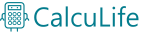
Barcode Generator lets you create clean, scannable barcodes in seconds, directly in your browser. Pick a barcode type, paste your data (single value or a full list, one per line), preview the first result instantly, then export your barcodes as PNG, transparent PNG, or SVG. If you paste multiple lines, downloads automatically switch to a ZIP archive so you can generate barcodes in bulk without any extra steps.


Features
1) Batch-friendly input (one barcode per line)
Values to encode (one per line) is where you paste your data. Each line becomes a separate barcode.
- Single mode: If you enter only one line, downloads produce a single PNG or SVG file.
- Batch mode: If you enter multiple lines, downloads automatically produce a ZIP archive containing one file per line.
- Live preview: The preview shows the first line, so you can confirm settings quickly while still exporting the full batch.
2) Barcode type selector
Barcode type controls the symbology used to encode your value. Choose the format that matches your label, inventory, retail, or packaging workflow.
- CODE128: Best overall choice for most people. Supports letters, numbers, and common symbols. Great for internal inventory, logistics, and general-purpose labels.
- EAN-13: Retail barcode standard with 13 digits total, widely used on consumer products.
- UPC (UPC-A / UPC-E): Retail barcode family commonly used in the US and Canada. UPC-A is typically 12 digits total.
- EAN-8: Compact retail barcode with 8 digits total, often used on small packages.
- CODE39: Popular for industrial and inventory labels, typically used with uppercase letters and numbers.
- ITF-14: Used for carton and case packaging, encodes 14 digits total.
- ITF: Numeric barcode used in logistics and warehousing.
- MSI: Numeric barcode used in some inventory systems.
- CODE93: Compact barcode in the Code family, often used when space is limited.
- Codabar: Used in some library and medical systems.
- Pharmacode: Used in pharmaceutical packaging workflows.
3) Value cleanup for valid barcodes
The tool helps prevent invalid barcodes by adjusting input when needed:
- Numeric-only formats: For EAN/UPC/ITF/MSI/Pharmacode, non-digit characters are removed so the value matches the standard.
- CODE39: Values can be converted to uppercase for better compatibility and readability.
- Cleanup messages: If the tool adjusts your data, it shows a clear note so you know what changed.
4) Show text under barcode
Show text under barcode controls whether the human-readable value is printed below the bars.
- Turn it on for shipping labels, warehouse picking, and any workflow where humans verify the value.
- Turn it off for a cleaner design or if you plan to place text separately in your layout.
5) Auto-fix checksums for EAN, UPC, and ITF-14
Auto-fix checksum for EAN/UPC/ITF when possible helps you generate standards-compliant barcodes by adding or correcting the final check digit.
- EAN-13: Enter 12 digits to auto-add the check digit, or enter 13 digits and the tool can correct an invalid check digit.
- EAN-8: Enter 7 digits to auto-add the check digit, or enter 8 digits and the tool can correct an invalid check digit.
- ITF-14: Enter 13 digits to auto-add the check digit, or enter 14 digits and the tool can correct an invalid check digit.
- UPC (UPC-A style): Enter 11 digits to auto-add the check digit, or enter 12 digits and the tool can correct an invalid check digit.
This is ideal if you have product codes or carton IDs that are missing the final digit and you want a barcode that scans reliably.
6) Bar height (px)
Bar height changes how tall the bars are.
- Taller bars usually scan more reliably, especially when labels are slightly curved or scanners are held at an angle.
- Shorter bars help when space is tight, but extremely short barcodes can be harder to scan.
7) Bar thickness
Bar thickness controls the width of the thinnest bars.
- Increase thickness for small labels or low-resolution printers to improve scan success.
- Decrease thickness to fit longer values into a smaller area, but avoid going too thin for print.
8) Quiet zone (margin)
Quiet zone is the clear space around the barcode. Scanners need this empty area to detect where the barcode starts and ends.
- Increase the quiet zone if scanning is inconsistent.
- Keep borders, text, and graphics away from the barcode edges.
9) Live preview and clear status messages
The tool updates the Preview automatically as you type or change settings. A status message confirms when your barcode is ready, warns about invalid input, and clearly indicates when batch mode is active.
10) Export scale (PNG resolution)
Export scale controls the resolution of exported PNG files. Higher scale creates a larger, sharper PNG that prints more cleanly.
- 1x: Lightweight draft export
- 2x: Recommended for most uses
- 3x: High-quality printing
- 4x: Very high resolution for large labels or resizing
11) Download PNG (single or ZIP)
Download PNG exports barcodes with a white background.
- One line: downloads a single PNG file.
- Multiple lines: downloads a ZIP archive containing one PNG per line.
12) Download Transparent PNG (single or ZIP)
Download Transparent PNG exports barcodes with a transparent background, perfect for placing on colored designs.
- One line: downloads a single transparent PNG.
- Multiple lines: downloads a ZIP archive containing one transparent PNG per line.
13) Download SVG (single or ZIP)
Download SVG exports a clean vector barcode that stays sharp at any size, ideal for professional design work and print layouts.
- One line: downloads a single SVG file.
- Multiple lines: downloads a ZIP archive containing one SVG per line.
14) Copy Image (single only)
Copy Image copies the current barcode image to your clipboard for quick pasting into documents and design tools.
- Copy is available when you have one line (single barcode).
- For multiple lines, use the download buttons to export a ZIP instead.
I put together all the best features I personally use in other barcode generators to create a perfect one.
FAQ
1) What is the difference between CODE128 and CODE39?
CODE128 supports a wider range of characters and packs data more efficiently, making it a better default for most labels. CODE39 is older and common in industrial workflows, usually using uppercase letters and digits.
2) What makes EAN-13 and UPC “retail” barcodes?
EAN-13 and UPC are standardized numeric identifiers used on retail products and recognized by point-of-sale scanners. They typically include a check digit to detect errors.
3) Can I generate barcodes for SKUs, serial numbers, or warehouse bin codes?
Yes. For SKUs and alphanumeric IDs, choose CODE128 (or CODE39 if your system requires it). For purely numeric IDs used in packaging or logistics, ITF or ITF-14 may be appropriate.
4) Why does my barcode scan incorrectly or not at all after printing?
Common causes include bars that are too thin, not enough quiet zone, poor printer resolution, low contrast, or resizing the barcode unevenly. Try increasing bar thickness, quiet zone, and export scale, and avoid stretching the image.
5) What background should I use: white or transparent?
White-background PNG is the safest for printing and most label workflows. Transparent PNG is best when you place the barcode on a colored design or want the background controlled by your editor.
6) Is SVG always better than PNG?
SVG is best when you need perfect sharpness at any size, especially for design tools and print layouts. PNG is more universal for uploads and systems that do not accept SVG. If you choose PNG for print, raise the export scale.
7) Is it okay to batch-generate hundreds of barcodes?
Yes. Paste one value per line and export a ZIP. For very large lists, it can help to export in smaller chunks to keep the browser fast, especially if you use a high export scale.
Would you like to have any other features in this barcode generator? Let us know in the comments below!
CalcuLife.com




Leave A Comment