

Double-Click Checker is a simple, accurate online test that records every click with a timestamp and the gap (Δ in milliseconds) to the previous click. When two consecutive clicks land within your chosen threshold, the tool groups them and labels them “double click!”. Use it to tune your OS double-click speed, verify device health, and diagnose “unwanted doubles.”
Double Click Checker
Click the big button. We log every click with exact time and Δ (ms) and clearly group real double-clicks.
Two consecutive clicks ≤ threshold are counted as a double click. Choose a preset or select Custom… and enter any value.
Click Area
Status: Waiting for first click…
Last Δ: —
Clicks: 0
Click Console
How to read this
- Each line shows the click time and the Δ from the previous click.
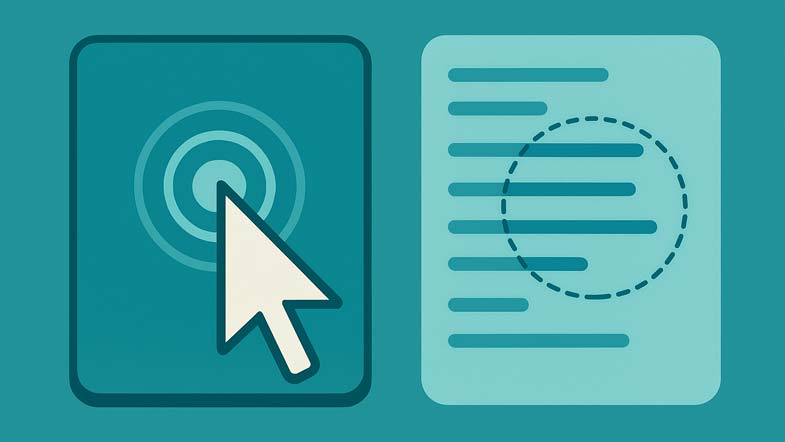
- If two consecutive clicks are within your threshold, they’re circled together and labeled “double click!”
- If you need more recognized doubles, increase (slow) your OS double-click speed.


What this tool solves
- Missed double-clicks: your hands are faster/slower than the OS threshold.
- Unwanted doubles: a bouncy or failing switch generates an extra click.
- Environment latency: wireless receivers, low batteries, hubs, remote desktops.
- Device comparison: test different mice/trackpads to see which is most consistent for you.
Quick start
- Pick a Double-click threshold (ms) from the dropdown, or select Custom… and type any value (e.g., 175).
- Just click the big button. The test starts on the first click—no start button needed. Space/Enter also work.
- Watch the console on the right. Each entry shows:
- # – the click index
- HH:MM:SS.mmm – exact local time
- Δ ms – time since the previous click
- When two consecutive clicks are within your threshold, they are circled together and labeled double click!
- Use Clear to reset the log and start a fresh session.
Interface and parameters
- Threshold (ms): the maximum gap allowed between two clicks to count as a double-click. Presets: 150, 200, 300, 400, 500, 600, 700. Choose Custom… to type any value (50–1000 ms in the widget). The current setting is always displayed in the number field.
- Click Area: a large, responsive button designed for repeatable clicking. It also accepts keyboard activation (Space/Enter).
- Status: shows whether the tool is waiting or running, last Δ, and total click count.
- Click Console: a live, newest-first log. Single clicks appear as single rows; pairs within the threshold appear grouped with a “double click!” badge.
- Clear: removes the log and resets counters without reloading the page.
How to interpret results
- Most pairs grouped as “double click!” → Your threshold fits your natural cadence. Consider trying a slightly faster value if it still feels easy.
- Many singles; few groups → Your threshold is too fast. Increase the ms value until most of your comfortable attempts group as doubles.
- Seeing doubles when you intended singles → Possible switch bounce (hardware issue). Try another USB port, move the receiver closer, change batteries, test another mouse. If it persists, the switch may need repair/replacement.
- Large variability in Δ → Interference (wireless), low battery, high CPU usage, long USB hubs, or remote/virtual environments can add jitter.
Recommended thresholds
- 200–300 ms: common sweet spot for many users.
- 150–200 ms: for fast/consistent users (gaming, pro tools) who maintain a low miss rate.
- 300–500 ms: more comfortable range if you miss doubles often at faster settings.
- Goal: pick the slowest value that gives you ~95% grouped doubles without strain.
How to change your OS double-click speed
After you test, adjust your system so apps behave the same way.
- Windows 10/11: Settings → Bluetooth & devices → Mouse → Additional mouse settings → tab Buttons → Double-click speed slider.
- macOS: System Settings → Accessibility → Pointer Control → Double-click speed slider.
- Retest here after changing the slider to confirm the fit.
Practical tips for clean measurements
- Use a stable surface and a comfortable grip. Keep the cursor over the Click Area to avoid pointer drift.
- For wireless mice: sit closer to the receiver, remove RF interference (USB 3.0 hubs, crowded ports), and use fresh batteries.
- Close heavy background tasks if your system is stuttering.
- Compare devices: repeat the same threshold on different mice/trackpads to see which gives you more consistent Δ values.
Troubleshooting checklist
- Missed doubles: raise the threshold (e.g., 200 → 300 ms) and retest. If misses persist even at high thresholds, consider ergonomics or device issues.
- Unwanted doubles: try a different port, remove hubs, move the receiver, replace batteries, or test a different mouse. Persistent unwanted doubles usually indicate a worn switch.
- Laggy response: avoid remote sessions for testing; plug the receiver into a front-panel USB 2.0 port away from USB 3.0 noise.
CalcuLife.com










Leave A Comment