

This test screens distance visual acuity on a desktop or laptop. It presents high-contrast letters that adapt in size based on your answers and estimates a Snellen-style result (e.g., 20/20, 20/40). Not a diagnosis; if results are sub-par or symptoms persist, book a comprehensive eye exam.
How to Use it
- Sit ~60 cm (arm’s length) from the screen in good, even room light. Wear your usual correction.
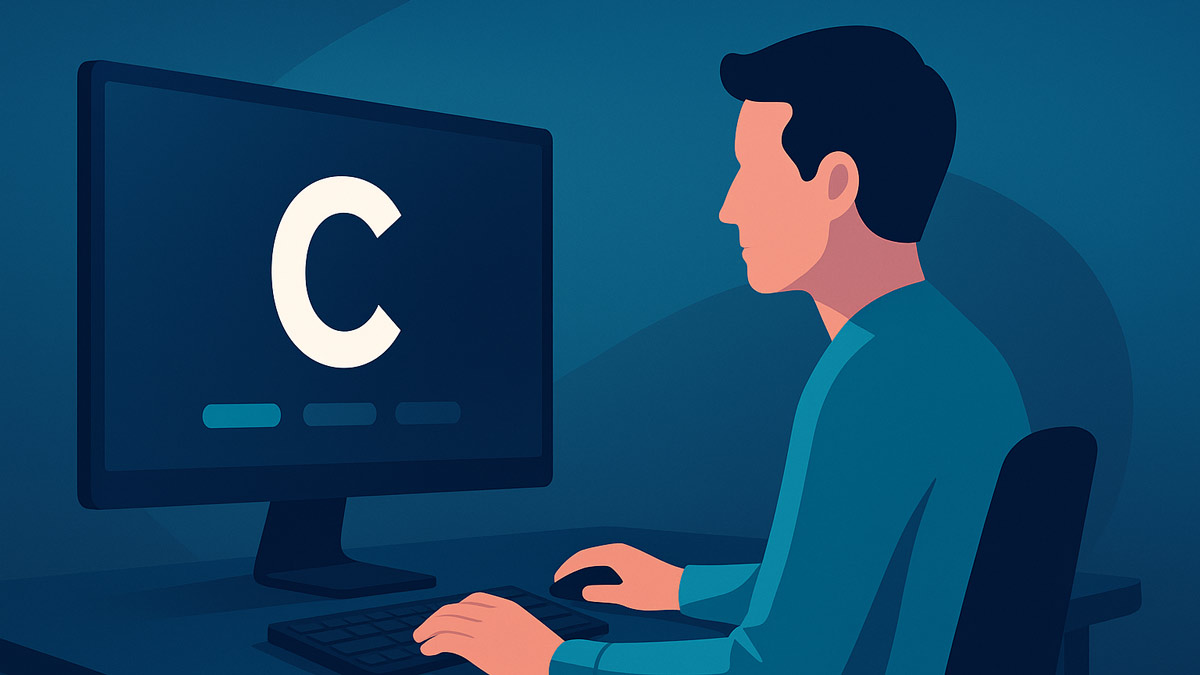
- Click Start Test. A single letter appears at the center on a dark background.
- Choose the matching letter from the on-screen options. After two correct answers at a size, letters get smaller; a miss makes them larger.
- When the test completes, click See Results for your estimated acuity and a breakdown by size.
Tip for more consistent results: keep browser zoom at 100%, don’t resize the window during the test, and avoid screen glare.
Online Vision Screening Test
Instructions
For accurate results:
• Sit approximately 60 cm (arm's length) from your screen
• Ensure proper lighting in your environment
• Wear your usual corrective lenses if needed
You'll be shown letters of decreasing size. Select the letter you see.
The test uses standard Snellen acuity measurement principles.
Visual Acuity Test
Identify the letter shown below.
Test Results
Note: This is a screening test only and does not replace a comprehensive eye examination.


What the Test Measures
Visual acuity is the eye’s ability to resolve detail. “20/20” means you can resolve at 20 feet what a person with “normal” vision can see at 20 feet. Larger denominators (e.g., 20/40) indicate poorer acuity. The same concept is used worldwide in Snellen or logMAR charts. Reference: StatPearls: Snellen Chart.
How It Works (Under the Hood)
- Adaptive staircase. Two correct responses in a row → smaller letters; one miss → larger letters. This converges quickly near your threshold.
- Confusable letters. Options are drawn from letter groups that people commonly mistake (e.g., C/O/G/Q), increasing screening sensitivity.
- Size mapping. Each step corresponds to common Snellen equivalents (20/200 → 20/10) and an approximate logMAR scale used in research (ETDRS).
- Auto-calibration. The app estimates pixel density from your system settings; accuracy can vary by monitor scaling and OS.
Interpreting Your Result
Your report shows an estimated Snellen acuity (e.g., 20/25). Smaller denominators generally mean better acuity (20/20 ≈ “normal”). Research and clinical standards often use logMAR for precision; 20/20 corresponds to logMAR 0.00, 20/40 to logMAR 0.30. Reference: University of Iowa—Visual Acuity Testing
Important: This is a screening, not a medical diagnosis. Room lighting, viewing distance, display dpi/zoom, and fatigue affect results. If you’re worse than expected—or if you notice symptoms (blur, eye strain, headaches, double vision)—schedule a comprehensive eye exam.
Distance & Ergonomics
For computer work, many occupational and optometry guidelines suggest sitting at roughly an arm’s length and taking regular screen breaks (the “20-20-20 rule”). More about positioning at the computer: CCOHS monitor positioning.
What “Low Vision” Means (Context)
Organizations often define “low vision” near ≤20/60 (≈ logMAR 0.5) in the better eye with best correction; thresholds vary across policies and studies. This tool does not classify medical low vision.
FAQ
Q: How long does the test take, and how many trials are used?
A: About 2–4 minutes. The staircase uses up to ~25 trials, shrinking after two correct responses and enlarging after a miss to estimate threshold efficiently.
Q: Why does my result differ from a clinic chart?
A: Clinics use standardized charts (Snellen/ETDRS), controlled lighting, and fixed distances. Home screens differ in pixel density and scaling, so expect some variance. NIST ETDRS overview.
Q: Why single letters instead of full chart lines?
A: A single-optotype, adaptive staircase is efficient for screening and aligns with the goal of estimating threshold, not replacing comprehensive testing. Background: StatPearls: Snellen chart.
Q: Can I test one eye at a time?
A: Yes. Cover one eye without pressing on it, complete the run, then repeat for the other eye. Record results separately (OD/right, OS/left).
Q: Why might results differ across devices?
A: Pixel density, OS scaling, browser zoom, and window size change effective letter size. Keep zoom at 100%, full-screen the window, and avoid resizing mid-test.
Q: Do brightness/contrast or font smoothing affect the outcome?
A: Yes. Very low brightness, glare, aggressive anti-aliasing, or poor contrast can reduce readability. Use moderate brightness and even ambient lighting.
Safety & Next Steps
This screening cannot detect eye disease, binocular coordination problems, or causes of reduced vision. If your estimated acuity is worse than usual, if one eye differs markedly from the other, or if you notice symptoms (glare, halos, headaches, eye pain), schedule a comprehensive eye exam with an optometrist or ophthalmologist.
What is your test score? Would you like to get any extra features in it? Let us know in the comments.
CalcuLife.com



Same question as CS. Is there a way to adapt this to a larger screen for the 20′ (6m) distance.
email: [email protected]
Hey Patricia! As a quick fix, I’ve added a fullscreen mode, and you can adjust the scale of the webpage ctrl + and ctrr – to find the right setup. Let me know if it works for you. True adaptaion would take some work